
How Do I Change or Edit a Sleep Record in Samsung Health?
Samsung Health tracks your sleep automatically when your device detects rest patterns, but sometimes the data needs adjustment. Whether your device missed a sleep session or recorded inaccurate times, editing sleep records is straightforward. Understanding how to modify these entries helps you maintain accurate health data for better insights into your sleep patterns and overall wellness.
This guide walks you through every step of editing, deleting, and manually adding sleep records in Samsung Health, ensuring your sleep data reflects your actual rest patterns.
Where Is the Sleep Record Feature Located in Samsung Health?
Open Samsung Health and look for the Sleep tile on your home dashboard. On most devices, the Sleep section appears prominently among other health metrics like heart rate and steps. If you don’t see it immediately, swipe down or check the menu options to locate the Sleep tracker.
What Specific Sleep Data Can Be Edited in Samsung Health Records?
Samsung Health allows you to edit the core sleep metrics that define your rest period. The primary editable fields include your bedtime and wake time, which automatically recalculate total sleep duration. You can also add personal notes about your sleep quality, such as whether you felt rested or experienced disruptions. Some versions allow you to tag sleep events or add context about factors affecting your sleep.
What Are the Steps to Manually Edit a Sleep Record in Samsung Health?
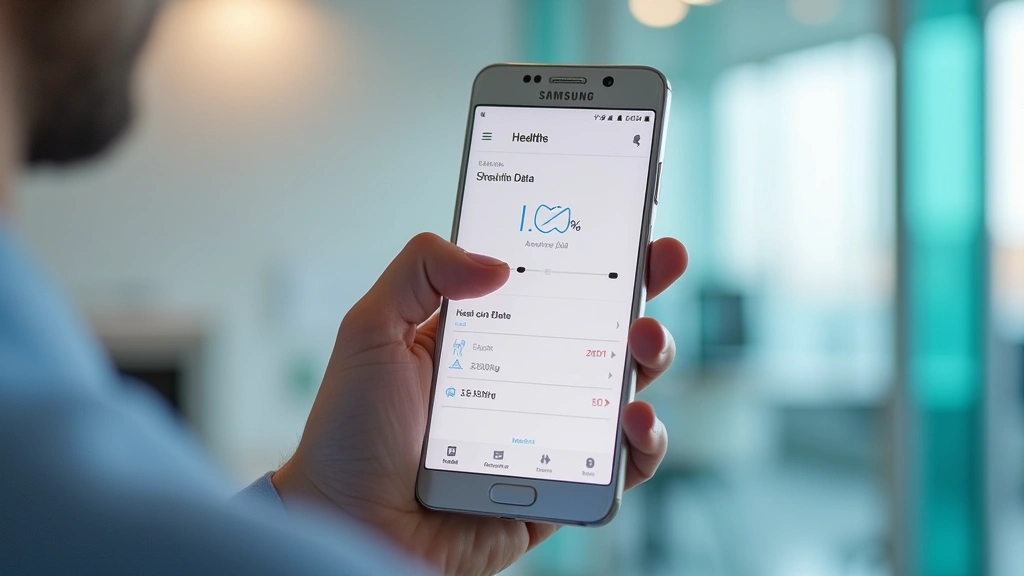
First, open the Samsung Health app and go to the Sleep section. Find the specific sleep record you want to modify by scrolling through your sleep history. Tap on the date or entry to open the detailed view. Look for the pencil or edit icon—usually located at the top right of the screen. Tap this icon to enter edit mode. Adjust your sleep start time, wake time, or add notes as needed. Once finished, tap Save or Confirm to apply your changes. The app will automatically update your sleep duration based on the new times.

Can You Delete a Sleep Record From Samsung Health?
If you need to remove a sleep record entirely, open the Sleep section and select the entry you want to delete. Tap the delete icon (usually a trash can symbol) and confirm when prompted. Deleted records cannot be recovered, so ensure you’re removing the correct entry. This is useful for removing duplicate entries or erroneous data that shouldn’t count toward your sleep statistics.
How Do I Manually Add a Sleep Record if Samsung Health Didn’t Automatically Track It?
Sometimes Samsung Health misses sleep sessions, especially if you weren’t wearing your device or it lost connectivity. To add a manual entry, open the Sleep section and look for the plus (+) icon. Tap it to create a new sleep record. Enter your actual sleep start time and wake time, then save. This ensures your sleep data remains complete and accurate. If you’re concerned about persistent tracking issues, consult online primary care doctors who can discuss sleep health strategies.
Why Might Your Samsung Health Sleep Record Be Inaccurate and Need Editing?
Samsung Health relies on motion sensors and wear detection to identify sleep, so several factors can cause inaccurate recordings. If you remove your device before bed, the app won’t track that sleep session. Poor Bluetooth connectivity between your device and phone can also disrupt data transmission. Additionally, if you stay still without sleeping, the device might incorrectly log inactive time as rest. Regular editing ensures your sleep records accurately reflect your actual rest patterns, which is important for monitoring overall health and sleep-related concerns.
Frequently Asked Questions
Can I edit sleep records from previous months or years?
Samsung Health maintains your complete sleep history, allowing you to go back and correct old entries anytime.
Will editing a sleep record affect my sleep statistics and averages?
This ensures your health insights remain accurate based on your actual sleep patterns.
Is there a limit to how many sleep records I can manually add or edit?
You can edit or add records as needed without restrictions from the app.