

How to Set Up Telehealth? Expert Tips Inside
Setting up a telehealth system has become essential for modern healthcare delivery. Whether you’re a healthcare provider launching your first virtual clinic or a patient seeking remote medical consultations, understanding the fundamentals of telehealth setup ensures seamless, secure, and effective digital health experiences. This comprehensive guide walks you through every step of establishing a functional telehealth platform, from technical requirements to patient onboarding and regulatory compliance.
Telehealth encompasses far more than simply downloading an app and scheduling a video call. A robust telehealth infrastructure requires careful planning around technology selection, security protocols, user experience design, and integration with existing healthcare systems. By following these expert tips, you’ll create a professional, compliant, and patient-friendly telehealth environment that meets modern healthcare standards.
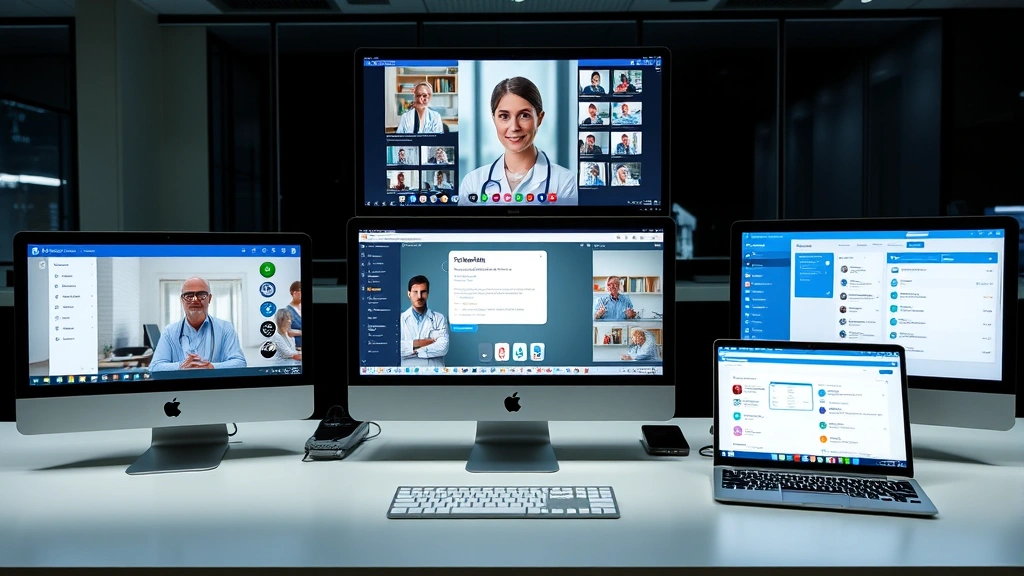
Understanding Telehealth Fundamentals
Before diving into technical setup, grasp what telehealth truly encompasses. Telehealth refers to the delivery of healthcare services, clinical information, and health education using telecommunications technology. This includes synchronous services (real-time consultations), asynchronous services (store-and-forward technology like email or secure messaging), and remote patient monitoring. Unlike telemedicine, which specifically refers to clinical care delivery, telehealth is broader and includes administrative and educational components.
Understanding your specific use case matters tremendously. Are you establishing a video doctor visit platform for general consultations? Will you need to monitor chronic disease patients remotely? Do you require digital health integration with existing electronic health records? Each scenario demands different technological approaches and compliance considerations.
The regulatory landscape for telehealth varies significantly by jurisdiction, state medical boards, and insurance requirements. Familiarize yourself with state-specific telehealth regulations, licensing requirements, and whether you need to establish prior patient relationships before offering virtual care. The FDA and CMS have specific guidelines for different types of telehealth services, particularly those involving monitoring devices or prescription management.
Choosing the Right Technology Platform
Selecting an appropriate telehealth platform represents your most critical decision. You have three primary options: building a custom solution, using a white-label platform, or adopting an established telehealth service. Each approach has distinct advantages and limitations.
White-label and established platforms offer the fastest implementation path. Services like Teladoc, Amwell, and MDLive provide turnkey solutions with built-in compliance features, though they may lack customization. These platforms handle infrastructure management, security updates, and regulatory compliance, allowing you to focus on clinical delivery.
Custom-built solutions provide maximum flexibility but require substantial technical expertise and ongoing maintenance. If building custom infrastructure, ensure your development team includes healthcare IT specialists familiar with HIPAA requirements and interoperability standards like HL7 and FHIR.
Key platform features to evaluate include video quality (HD minimum, ideally 1080p), screen sharing capabilities, recording functionality, appointment scheduling integration, secure messaging, prescription management, and payment processing. Test multiple platforms with actual users before committing—what works technically may frustrate patients or clinicians during real consultations.
Consider whether you need healthcare AI policy compliance if implementing AI-assisted diagnostics or administrative automation. Emerging artificial intelligence tools in telehealth require specific governance frameworks and transparency protocols.
Setting Up Hardware and Internet Requirements
Reliable technology infrastructure forms the backbone of professional telehealth operations. Bandwidth requirements depend on usage intensity, but plan for minimum 5 Mbps download and 2.5 Mbps upload speeds for HD video consultations. For facilities serving multiple simultaneous users, allocate 10+ Mbps per concurrent consultation.
Recommended hardware specifications:
- Computer: Modern processor (Intel i5/AMD Ryzen 5 or better), 8GB RAM minimum, SSD storage
- Webcam: 1080p HD minimum, external camera preferred over laptop integrated units
- Microphone: Dedicated USB microphone or headset with noise cancellation
- Monitor: 24-inch minimum for clinical review of patient information and documentation
- Internet: Hardwired Ethernet connection preferred over WiFi for stability
- Backup connectivity: Mobile hotspot or secondary internet connection for continuity
Lighting significantly impacts video quality and patient perception of professionalism. Position yourself with light sources in front rather than behind you, minimizing shadows and glare. Invest in adjustable LED lighting panels (approximately $50-150) for consistent, flattering illumination across all consultations.
Background considerations matter for patient trust and HIPAA compliance. Ensure your background displays no patient information, confidential documents, or unprofessional elements. Consider using virtual backgrounds cautiously—some patients find them distracting, while others appreciate privacy protection. Test your background thoroughly during platform trials.
Implementing Security and HIPAA Compliance
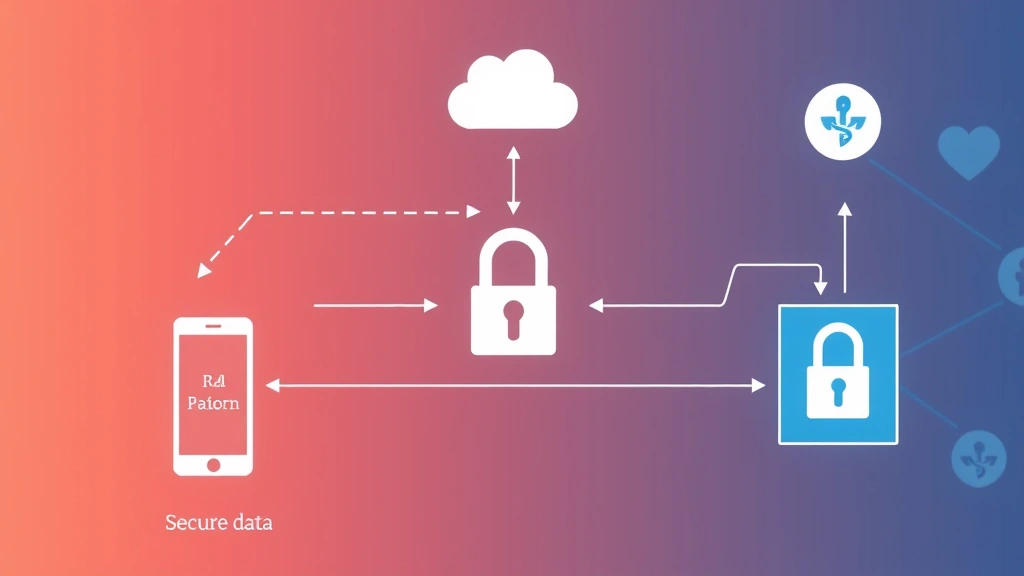
Security represents the most critical aspect of telehealth setup. HIPAA compliance is non-negotiable for any U.S.-based healthcare provider handling protected health information. This involves far more than using encrypted video—it encompasses data storage, transmission, access controls, and audit trails.
Essential security measures include:
- End-to-end encryption: All video, audio, and data transmission must use TLS 1.2 or higher encryption protocols
- Authentication: Implement multi-factor authentication for all staff and patient accounts
- Access controls: Restrict data access to authorized personnel only, with role-based permissions
- Audit logging: Maintain detailed logs of all system access, modifications, and data transfers
- Data retention policies: Define how long telehealth records and session recordings are retained
- Incident response plan: Establish procedures for security breaches, including notification protocols
- Business associate agreements: Ensure all third-party vendors sign BAAs covering HIPAA requirements
Verify that your chosen platform maintains SOC 2 Type II certification, indicating independent security audits. Request documentation of their security practices, penetration testing results, and incident response procedures. Never assume a popular consumer platform (Zoom, Google Meet, Skype) is HIPAA-compliant without explicit verification.
Password policies should enforce complexity requirements, regular changes, and prohibit sharing between users. Implement session timeouts (typically 15-30 minutes of inactivity) to prevent unauthorized access to unattended devices. Train all staff on phishing awareness, as social engineering remains a primary security vulnerability.
Integrating Digital Health Systems
Seamless digital health integration with your existing electronic health record system dramatically improves clinical workflows and reduces documentation burden. Integration allows automatic population of patient demographics, medication lists, and visit history into your telehealth platform, eliminating manual data entry errors.
Modern health information exchanges use standards like FHIR (Fast Healthcare Interoperability Resources) and HL7 to enable data sharing between systems. If your EHR vendor doesn’t offer native telehealth integration, explore third-party integration platforms like Zapier, Mulesoft, or healthcare-specific solutions like Redox or Interfaceware.
Integration priorities for telehealth:
- Patient demographics and insurance verification
- Medication reconciliation and allergy alerts
- Problem list and previous visit notes
- Lab results and imaging reports
- Prescription management and e-signature workflows
- Billing and claims submission
Consider whether you’ll incorporate remote monitoring devices (blood pressure cuffs, glucose monitors, pulse oximeters) that transmit data directly into your system. These integrations require careful validation to ensure accuracy and reliability for clinical decision-making. Pharmaceutical supply chain security may also intersect with your telehealth operations if dispensing medications or managing controlled substances.
Training Your Team and Patients
Technology competence directly impacts telehealth success. Develop comprehensive training programs covering platform navigation, troubleshooting common issues, clinical workflows specific to telehealth, and security protocols.
Staff training should include:
- Platform-specific features and navigation
- Testing audio/video before patient sessions
- Screen sharing and documentation techniques
- Managing technical interruptions (reconnection procedures)
- HIPAA compliance and patient privacy protection
- De-escalation techniques for frustrated patients
- Clinical documentation and coding for telehealth visits
Schedule regular refresher training (quarterly minimum) to cover platform updates, new features, and emerging best practices. Create quick-reference guides and video tutorials accessible to staff during shifts.
Patient onboarding determines whether people successfully engage with your telehealth service. Provide clear instructions well before their first appointment, including system requirements, platform download links, and step-by-step setup guides. Consider hosting brief orientation sessions for less tech-savvy populations.
Patient training materials should address:
- Technical requirements and troubleshooting steps
- How to test their audio and video before appointments
- Privacy considerations and what they should wear/show
- How to share symptoms or relevant information
- Prescription and billing processes through telehealth
- What to do if technical problems occur during their visit
Launching Your Telehealth Service
A successful launch requires careful planning and phased rollout. Begin with a pilot program involving small numbers of staff and patients before full-scale deployment. This allows you to identify and resolve issues before they impact your broader patient population.
Pre-launch checklist:
- Complete security and HIPAA compliance audits with documentation
- Conduct load testing to ensure platform stability under expected patient volume
- Verify all integrations with EHR, billing, and scheduling systems
- Train all clinical and support staff thoroughly
- Create patient-facing marketing materials and instructions
- Establish technical support procedures and escalation paths
- Set up monitoring and analytics to track system performance
- Develop policies for scheduling, cancellations, and no-shows
- Establish billing and insurance verification processes
- Create contingency plans for technical failures
Marketing your new telehealth service should emphasize convenience, accessibility, and the same quality of care as in-person visits. Highlight specific benefits relevant to your patient population: reduced travel time, easier scheduling, continuity of care for established patients, or expanded access to specialists.
Monitor key performance indicators during your launch phase: patient satisfaction scores, technical incident rates, appointment completion rates, and staff feedback. Be prepared to adjust workflows, provide additional training, or modify platform settings based on real-world usage patterns.
Consider external resources like Family Handyman for general technology setup guidance, though healthcare-specific resources are preferable. The This Old House approach to methodical planning applies equally to telehealth infrastructure—measure twice, implement once.
For regulatory guidance, consult CMS telehealth coverage policies and your state medical board’s specific requirements. The FCC provides telehealth broadband guidance for connectivity requirements. HHS HIPAA resources offer comprehensive compliance documentation.
Ongoing maintenance ensures your telehealth system remains secure, functional, and compliant. Schedule regular software updates, conduct periodic security audits, review access logs, and update your incident response procedures based on emerging threats. Telehealth is not a one-time implementation but an evolving system requiring continuous attention and improvement.
FAQ
What are the basic requirements to start a telehealth platform?
You need a HIPAA-compliant video conferencing platform, secure internet connection, appropriate hardware (computer, webcam, microphone), EHR integration, staff training, and clear regulatory compliance documentation. Start with understanding your state’s telehealth regulations and licensing requirements.
How much does telehealth setup cost?
Costs vary widely: basic platform subscriptions range from $100-500 monthly, EHR integration adds $200-1000 monthly, hardware investment (computer, camera, lighting) costs $500-2000 initial, and staff training requires 20-40 hours per employee. Total startup typically ranges $2000-10000, with ongoing monthly costs of $500-2000.
Is Zoom HIPAA compliant for telehealth?
Standard Zoom is not HIPAA-compliant. However, Zoom offers a healthcare-specific plan (Zoom for Healthcare) with BAA coverage and enhanced security features. Never use standard Zoom for patient consultations without explicit HIPAA compliance verification and a signed Business Associate Agreement.
How do I ensure patient privacy during telehealth visits?
Use secure, encrypted platforms with end-to-end encryption, establish private physical spaces for consultations, implement access controls limiting data visibility, maintain detailed audit logs, train staff on privacy protocols, and develop clear policies about recordings and data retention.
What should I do if technical problems occur during a patient visit?
Establish clear protocols: attempt to reconnect within 1-2 minutes, have backup communication methods (phone), document the issue, offer rescheduling without penalties, and follow up with the patient afterward. Maintain a technical support line patients can call for immediate assistance.
Can I prescribe medications through telehealth?
Prescription authority through telehealth varies by jurisdiction, medication type, and whether you have an established patient relationship. Many states allow prescribing certain medications via telehealth with prior in-person visits, while others restrict controlled substances. Verify your state’s specific regulations and maintain detailed documentation of prescribing decisions.
How do I integrate my EHR with telehealth?
Check if your EHR vendor offers native integration with your chosen telehealth platform. If not, use third-party integration platforms like Zapier, Redox, or Interfaceware that support HL7/FHIR standards. Test all integrations thoroughly before launch to ensure accurate data flow and no HIPAA violations.